
How to Photograph a TV Screen So You Can Identify the Actor
Photos of a TV screen are trickier than they look. You get stripes, lamp glare, and faces that turn to mush. If the goal is to identify an actor, one thing matters most: a clear face. Here are six tips you can use right away.
1. Pause first
Moving scenes blur. Pause on a frame where the face is sharp. Avoid the moment of a scene change, where two shots can overlap.
2. Pick a front-facing moment
Profiles and downward glances are harder to recognize. Skip back or forward a few seconds to find a frame where they face the camera.
3. Fill the frame with the face
Shoot the whole TV and the face ends up tiny. Move closer to that part of the screen, or crop afterwards. Heavy digital zoom can make things blurrier, so moving closer is better.
4. Kill the glare
Ceiling lights and windows leave white patches on the screen. Shift your position or tilt the phone until no reflection crosses the face.
5. Hold the phone parallel to the screen
Shooting at an angle stretches the face. Keep the phone square to the TV. If you see wavy stripes (moiré), stepping back a little or changing the distance often reduces them.
6. One person at a time
If several people are on screen, choose a frame where the person you want is the largest.
Note: you often can't screenshot streaming apps
Netflix and most streaming apps block screenshots on phones — you usually get a black image. If you're watching on your phone, photograph it with another device, or put the same scene on a TV.
What it looks like in practice
Point the phone at the screen, snap, and a few seconds later the actor's name and roles spread out on the phone.
Actor photos and title data: TMDB
Once you have the photo
Our app, who are you again?, is built to identify actors from photos of a TV. Snap live, or pick a photo you saved to your album.
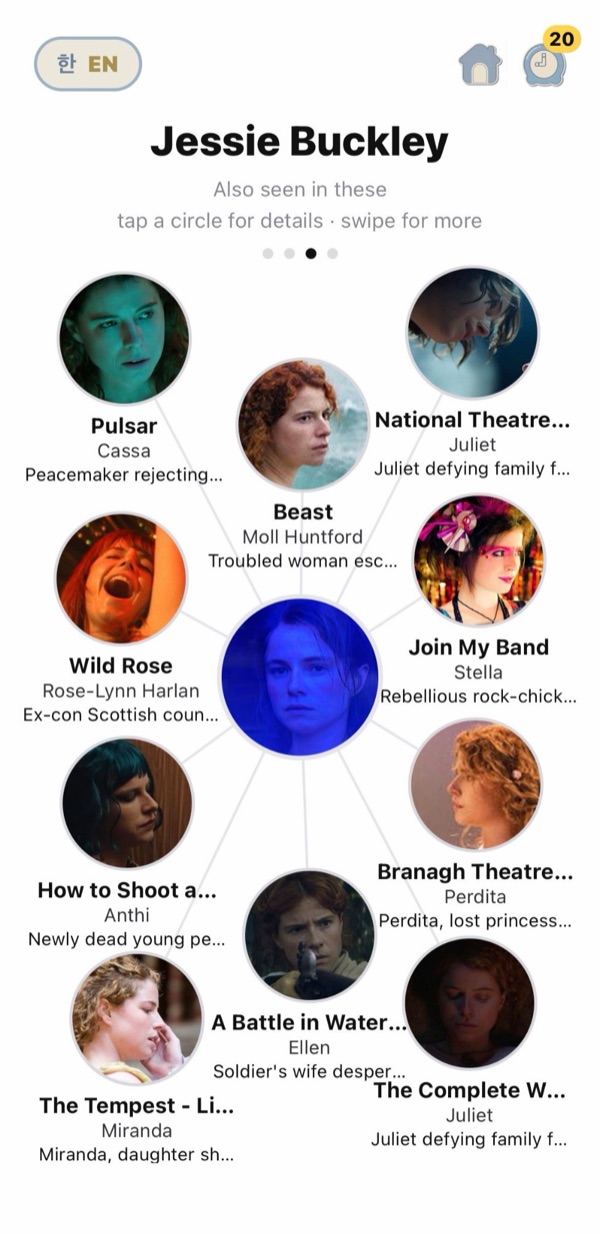
Actor photos and title data: TMDB
Even with a perfect photo, very new or little-known actors may not be found yet. A search that finds no one never uses up a free search.
Pause, get close, keep it square. Then just snap. First 20 searches free.
Download on the App StoreiPhone app · 20 free searches to start
Related: How to identify an actor from a photo or screenshot